The most complete director’s viewfinder ever put in a pocket.
Forty cinema bodies with their real scan windows, your own lens kit on a roll, a library of 230+ true 3D LUTs you can export for any camera’s log, and five working modes — photo, video, exposure meter, LiDAR scanner and monitor calibrator.
Most viewfinder apps hand you a crop factor and a focal length. This one starts from the sensor: every non-fixed body carries its actual selectable scan windows, each with the active image area in millimetres — published by the manufacturer where published, derived from the exact photosite ratio where not.
Bodies
Pick the camera you’re actually shooting
ARRI, RED, Sony, Canon, Blackmagic, DJI, Panasonic — plus broadcast chains, action cameras, and every recent iPhone, Galaxy and Pixel for when the phone is the camera.
Sensor windows
4.6K Open Gate isn’t “Super 35”
Spin the body’s real modes on their own reel — 4.6K 3:2 OG, 4K S35, 3.3K 6:5, 2K Super 16 — and the angle of view changes because the photosite window did. Delivery aspect rides a reel beside it and crops inside that window, the way the camera does it.
Lens roll
Your kit, on an endless roll
Primes snap to their stop; zooms ride a focal-length wheel with real detents. Stock CP lenses are derived from your phone’s own native glass and relabelled for whichever window you picked. Add your own — or sign in and your show’s lens inventory is just there.
ARRI Alexa 35Alexa Mini LFAlexa 65RED V-Raptor 8K VVKomodo-XSony Venice 2 8.6KBuranoFX9FX6Canon C400C500 Mk IIURSA Mini Pro 12KPyxis 6KDJI Ronin 4D X9Varicam 35HDC-5500LDX 100UHK-X750… and 20+ more
One vertical reel
Five modes, one swipe apart
Photo is home. Swipe down for Video and the Groundplan Scanner, up for the Exposure Meter and the Monitor Calibrator. Every mode keeps the same frame, the same rail, the same capture button in the same place — only its colour, its glyph and its instruments change.
Photo mode
The frame, graded, with every number live
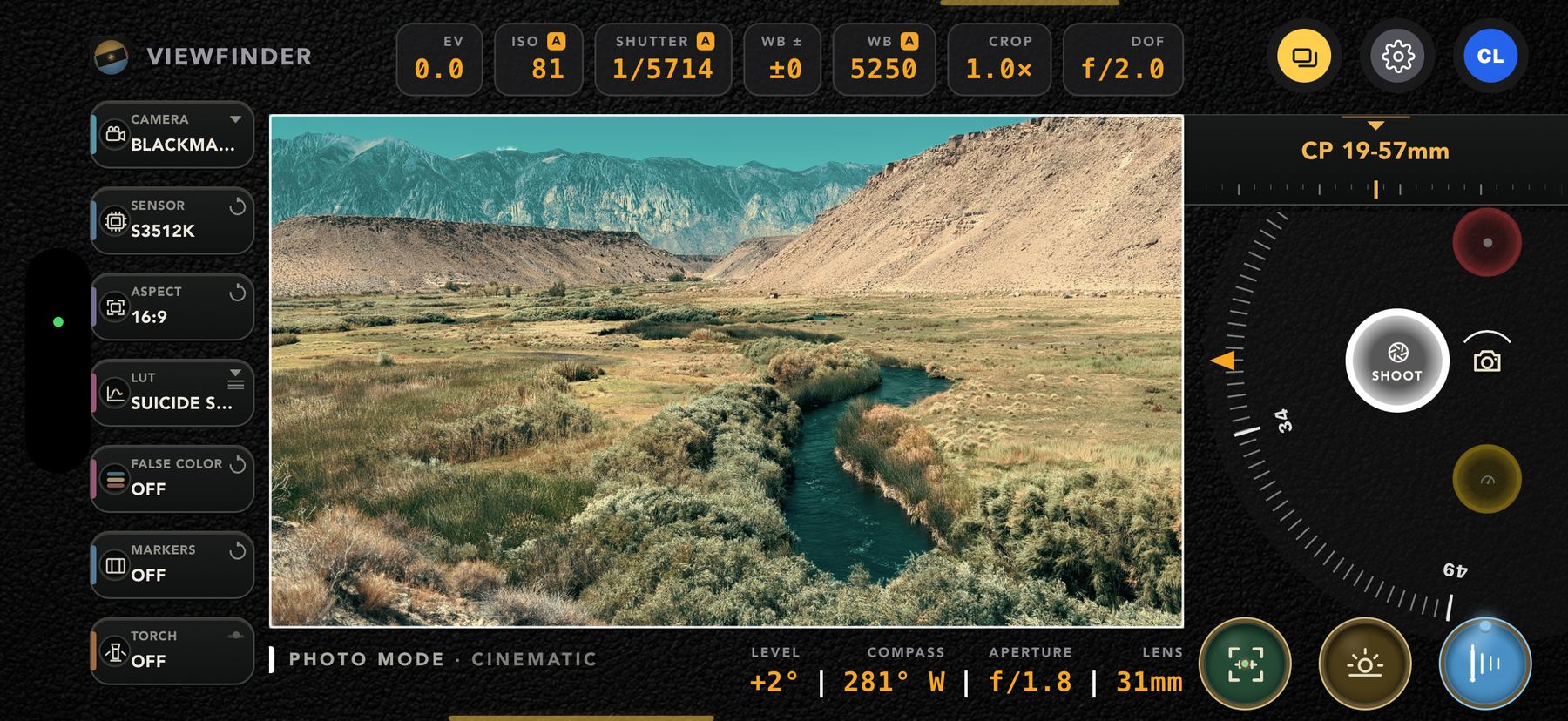
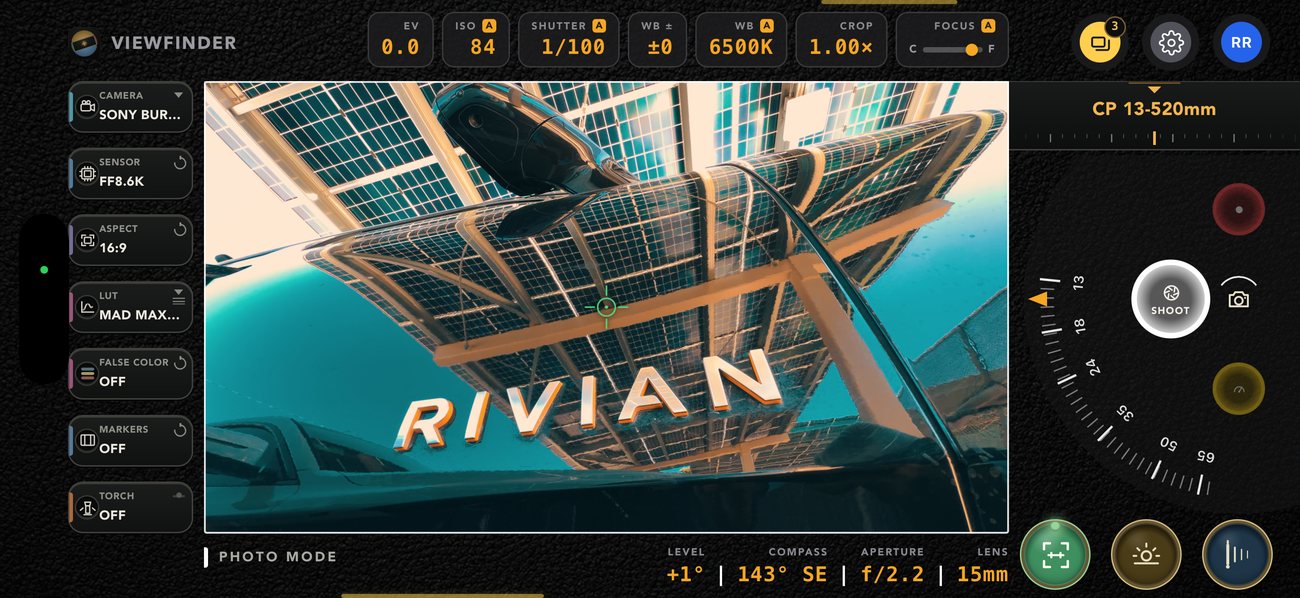
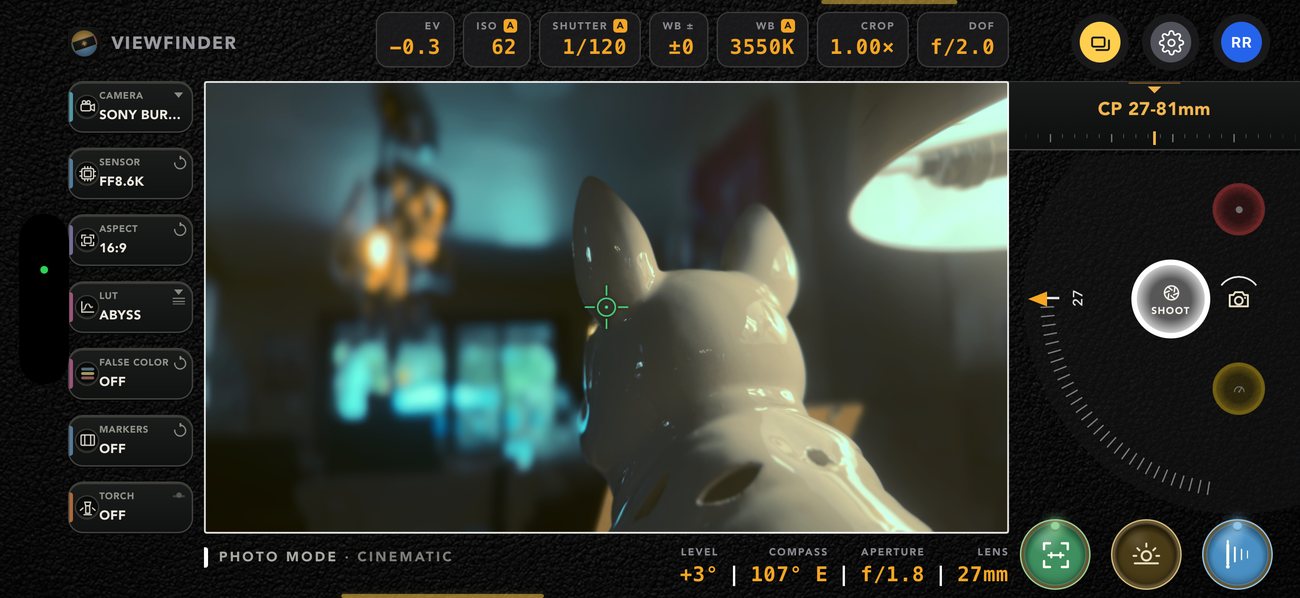
Hold the phone up and you are looking through the body you picked. The top row is the row you touch — hold and drag any readout to scrub it, long-press to switch what it means.
EV, ISO, shutter, white balance, WB ± and focus as live, draggable readouts
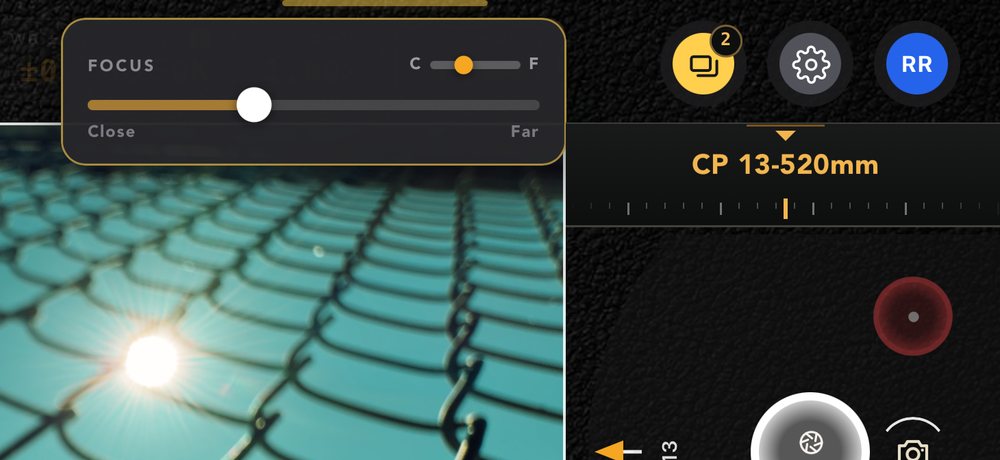
Tap to focus, hold to lock — and a focus slider across the frame when you want it by hand
Level, compass, aperture and focal length reading out under the frame, information only
Crop 1.00×–2.00× in fifth-stops, on its own top control
Long exposure to 90 seconds — slide the shutter past a second and the ladder keeps going: 2, 3, 5, 10, 15, 20, 30, 45, 60, 90
Captures burn in the body, sensor mode, focal length and heading, save silently to Photos, and land in your viewfinder library
Video mode
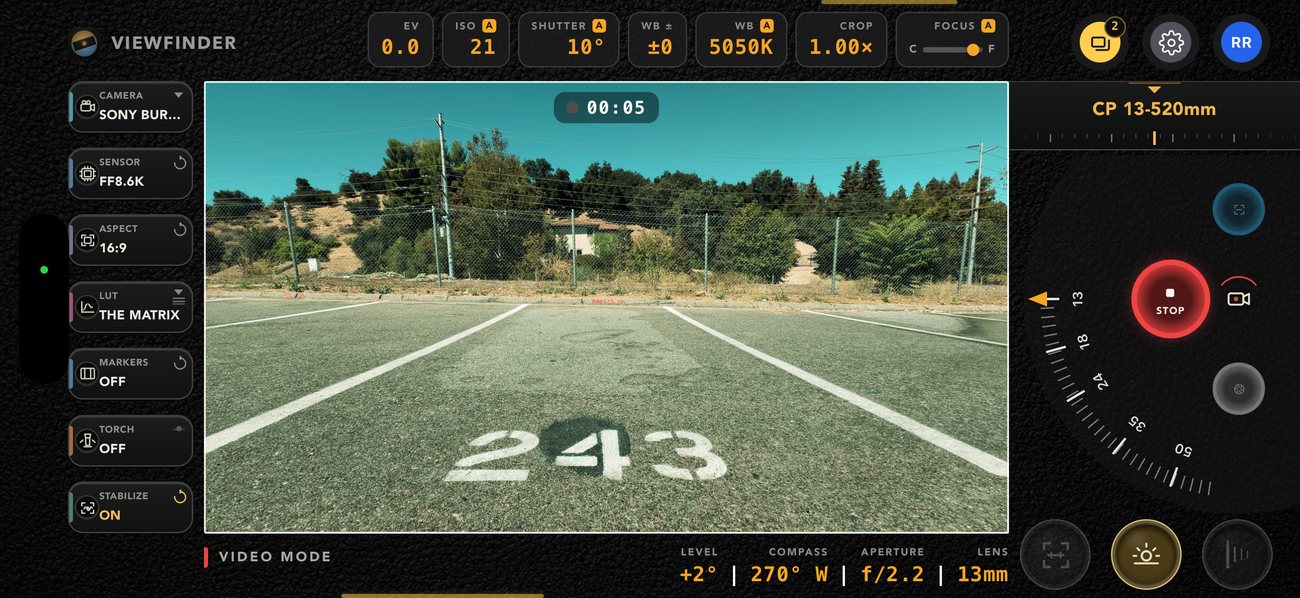
It records exactly what the monitor shows
The grade is not an overlay. Every delivered frame goes through the same Metal pipeline the preview uses and straight into the writer — so the LUT and the lens warp are baked into the file, not promised in post.
HEVC or H.264, 1080p or 4K, exact NTSC-rational frame rates locked natively — 23.976 by default
Shutter as a cinema angle — 45° through 360°, 172.8° included, converted against the project frame rate
Apple Log and Apple Log 2 10-bit capture on capable devices, straight off the top of the LUT list
Cine and Sport stabilisation that runs on a second capture output, so its look-ahead latency lives in the take and never in your monitor
AAC audio, portrait takes come out upright, saved to a CamPlot Videos album
Rolling · 00:05 · stabilisation on
Exposure meter
A handheld meter that reads the real scene
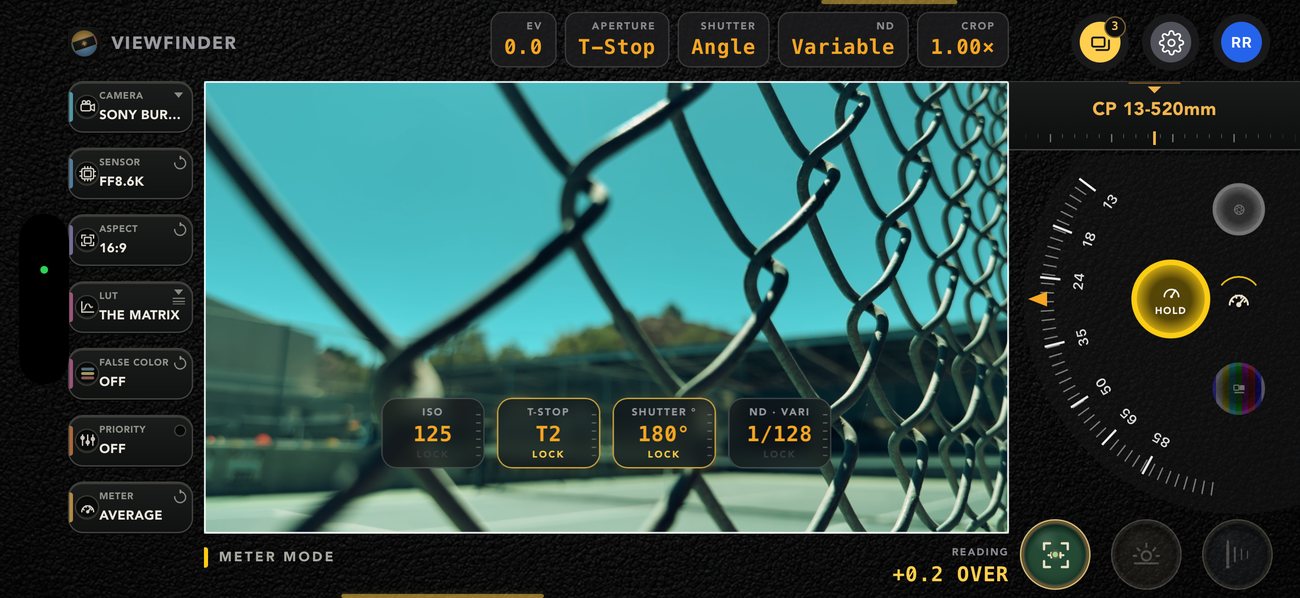
The phone’s own live telemetry becomes one target EV. Four interlocking dials sit over the frame as pure representations of it — lock what the production has already decided, and let the rest solve.
ISO, f-stop or T-stop, shutter angle or speed, and ND — variable, hard, or in stops. Long-press a dial to cycle what it is
A real priority cascade: unlock more than one dial and the highest-priority one absorbs the change first, rolling the remainder onward when it runs out of range
The ± stop discrepancy is eagerly live — it shows you the gap continuously, not only once everything has maxed out
Average or spot metering from the rail, like a real narrow-angle meter
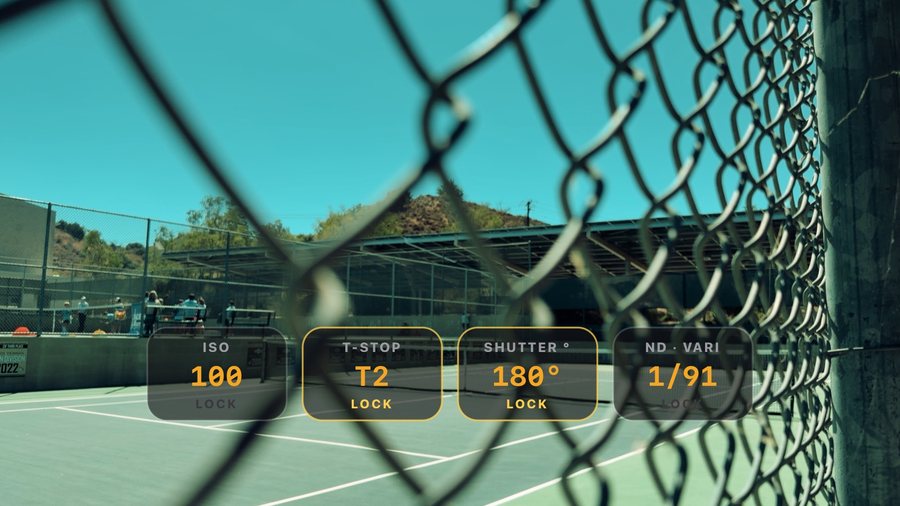
Freeze the reading so it stops drifting while you dial, then save a reference frame with all four values and the EV burned in
Three dials locked · reading +0.2 OVER, live
The saved reference frame — all four values burned in
Groundplan scanner
Walk the room. Leave with the plan.
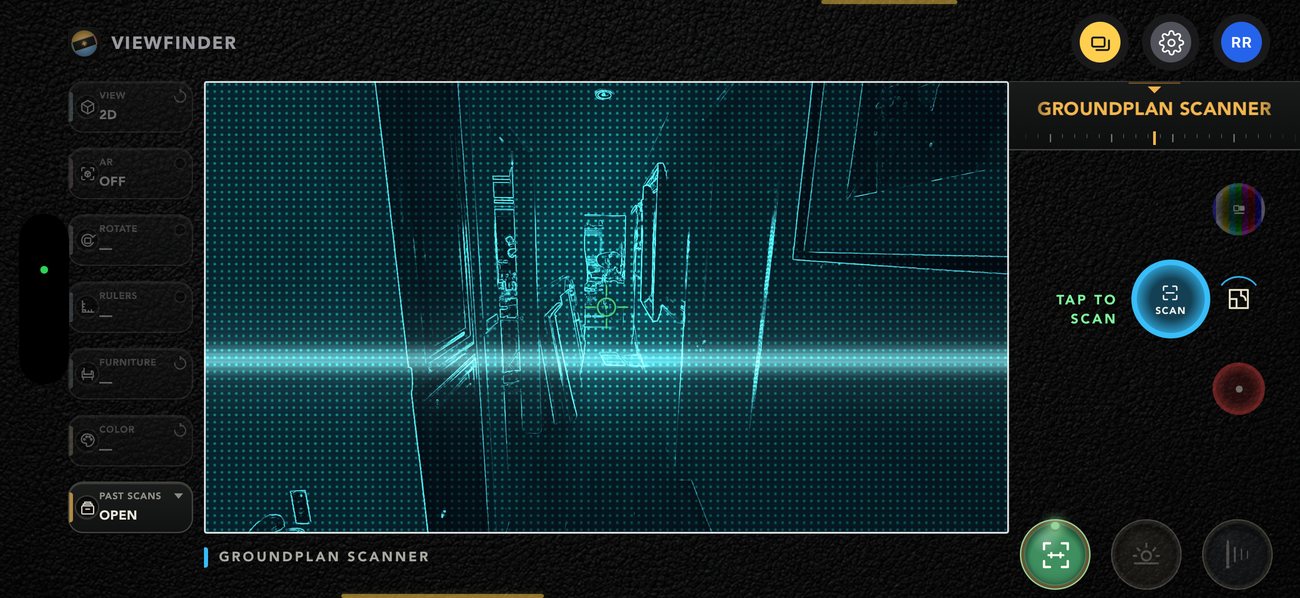
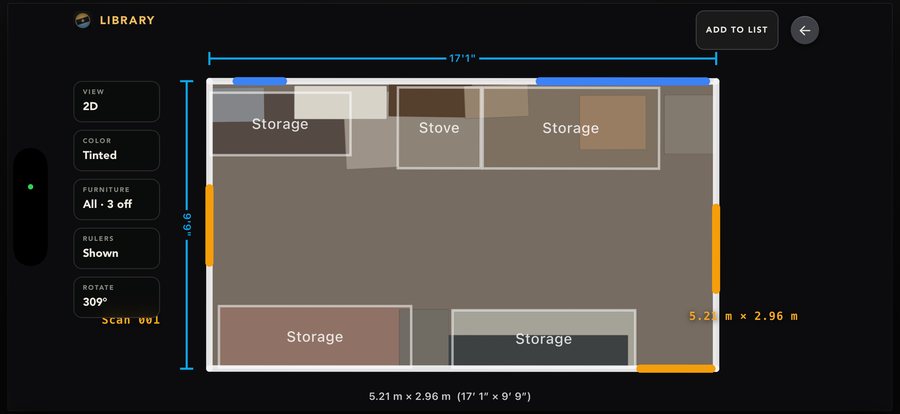
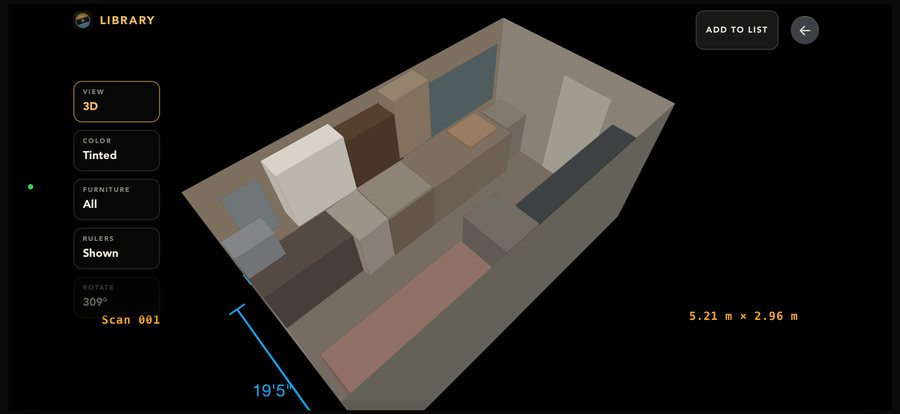
LiDAR scanning on Apple’s own RoomPlan coaching, handed straight into the finder’s frame for review — a dimensioned 2D plan and an orbitable 3D model of the same scan, both coloured from the room’s own camera.
2D or 3D from one scan, always opened with the longest wall horizontal, free to rotate from there
Rulers, and furniture ALL / NONE / SELECT — drop the couch nobody is shooting
Colour — clean white, or tinted with the actual colours the camera saw
Export USDZ or the 2D plan, view it in AR, or keep it in the on-device Past Scans library
Add a scan to a shot list like any other frame, so the room and the frames you shot in it travel as one document — shot lists →
Signed in, a scan saves straight into a CamPlot project’s groundplan library — pick the project and setup right there, then plot your cameras on it
Mid-scan, on the widest native lens
2D plan · 17′1″ × 9′9″, ruled
The same scan, in 3D · tinted
Monitor calibrator
Tune a monitor in the language its menu already speaks
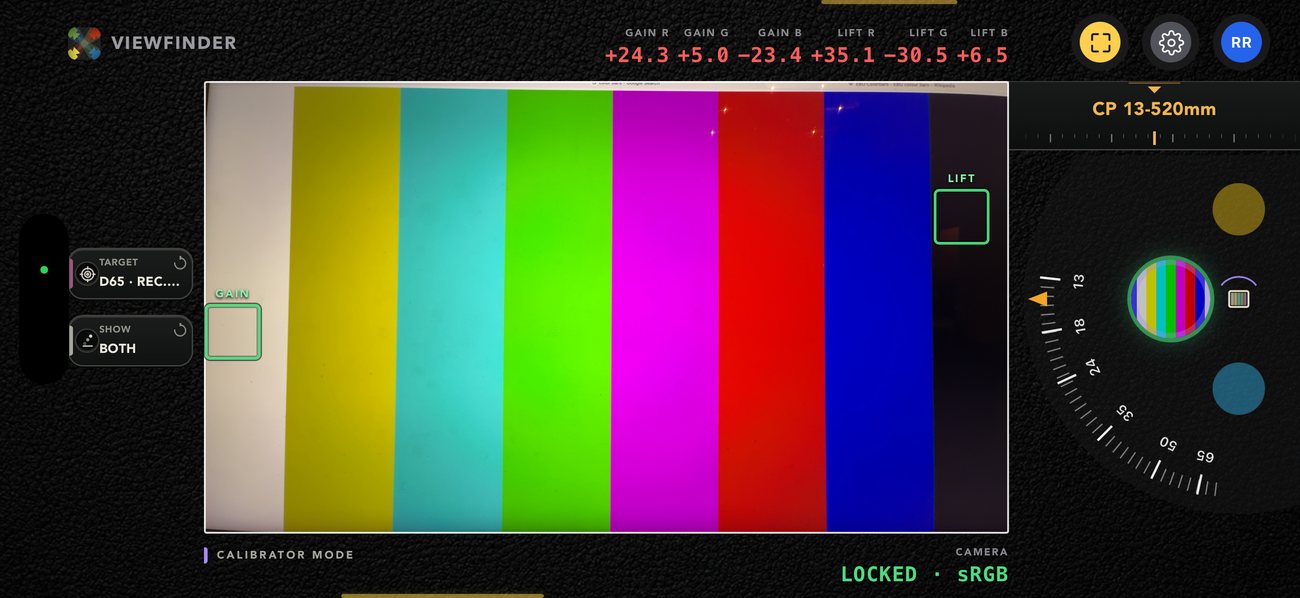
Point the phone at a monitor showing bars from its own source. Auto exposure, auto white balance and the colour space lock off entirely — the camera stops helping — and the readouts turn into the trims you actually reach for.
Full two-point greyscale — separate low and high tracking, each with its own R/G/B readout
±Red, ±Green, ±Blue gain and lift, the same six numbers a SmallHD calibration menu gives you
Your own reference targets, savable, with a D65 / Rec.709 default out of the box
Honest about what it is: guitar-tuner guidance, not lab colorimetry — a phone camera is not a probe, and the app says so
Depth, not just a number
Cinematic mode — and a DOF readout to go with it
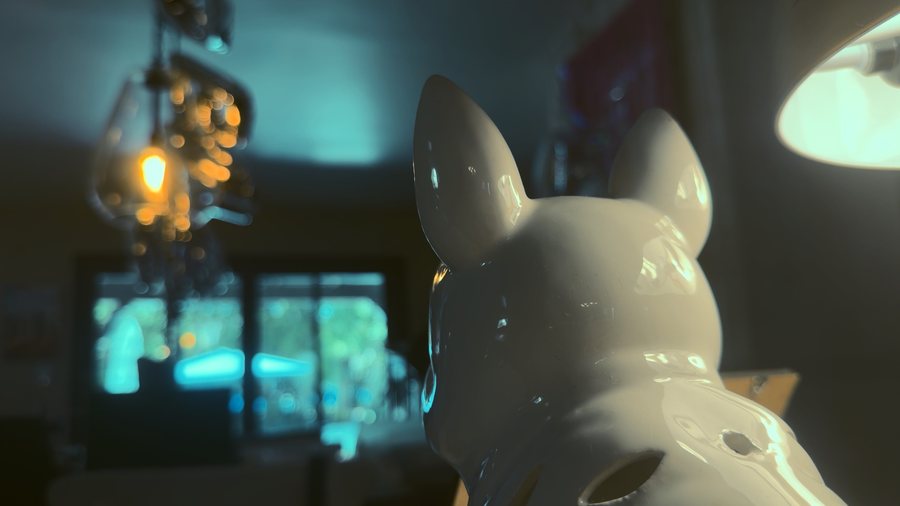
Turn it on in Photo or Video and FOCUS in the top row becomes DOF — the aperture the depth of field is being rendered at, sitting beside the real f-stop of the phone’s lens. The background goes where a fast prime would put it, and the file you save is the file you were looking at.
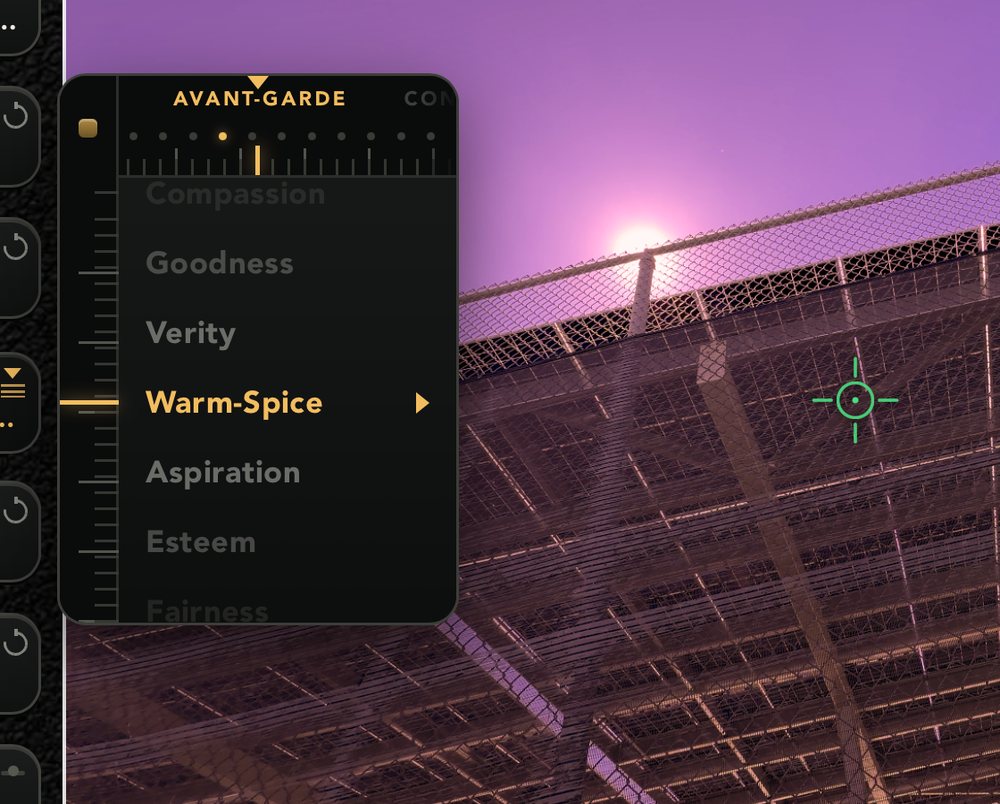
Every look in the finder is a true 3D LUT running on the GPU, and more than two hundred and thirty of them ship in the box. All of them are on the dial, shelf by shelf — scrub them under your thumb until the frame is right — then export that look already converted for the camera you’re shooting. The way you see it on the app is the way you get it on your cinema camera.
The library
Two hundred and thirty-plus looks, nine packs
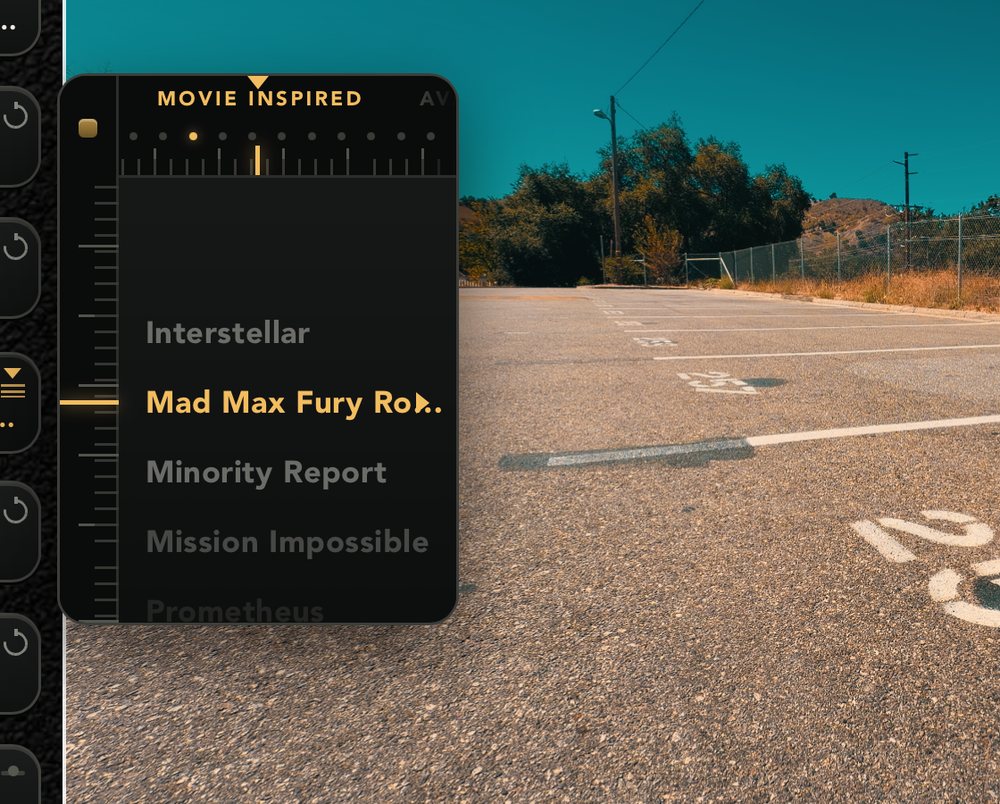
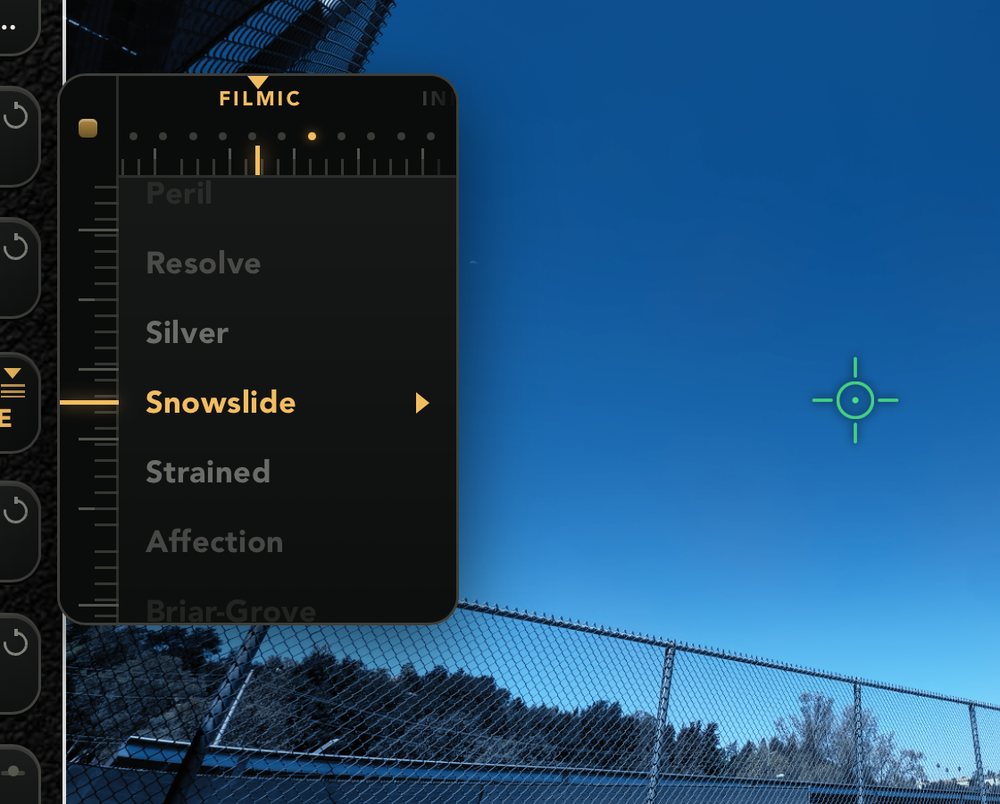
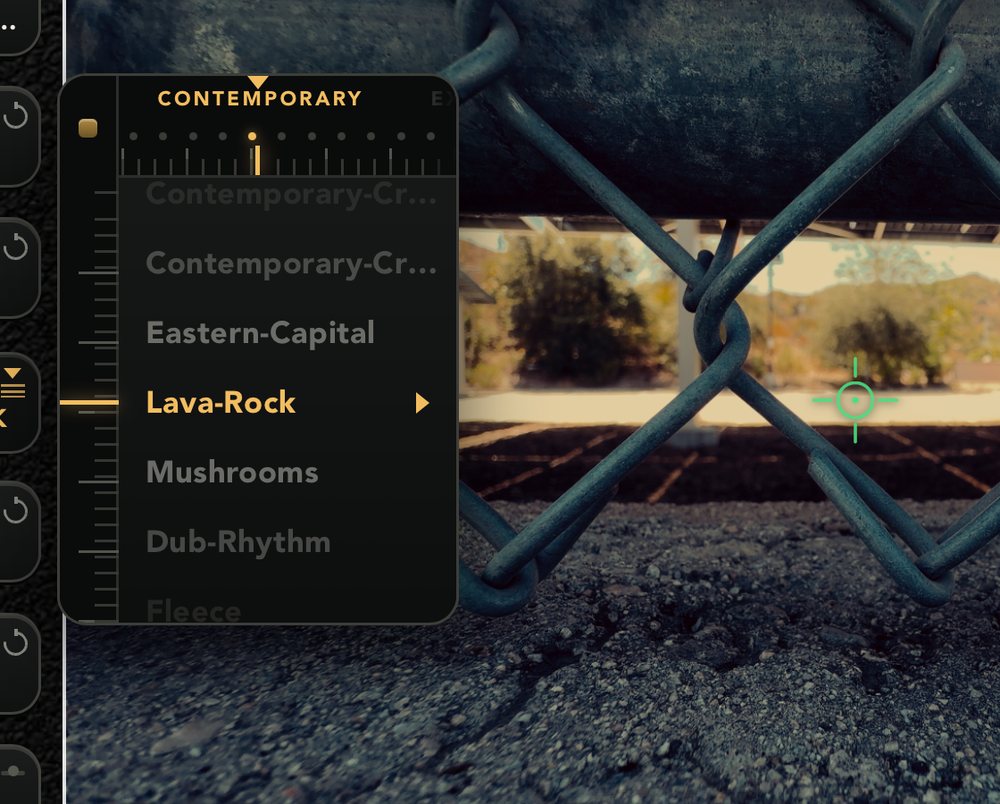
Movie Inspired, Filmic, Vintage, Contemporary, Expedition, Avant-Garde, Vibrant, Single-Tone and Influencers — each pack a drawer in Settings, with a search box across all of them. CamPlot’s own Pop, Stylistic and Cinematic sit at the top, and your own imported .cube files sit beside them, as many as the phone will hold. The whole library is cached on the phone, so it works with no signal.
The dial
Thirty on the dial, one thumb
The whole library lives on the LUT widget, shelf by shelf. Touch it and hold: a reel comes out under your finger — drag up and down through the looks, left and right through the shelves, which recycle so neither direction dead-ends. The picture regrades live at every stop, so you find a look by looking rather than by reading names. A shelf of up to ten favourites sits right after System for the ones you keep coming back to. 709 is always the clean feed at the top; in Video on a capable iPhone, Apple Log and Apple Log 2 sit above it and record true log instead.
Export
Any look, in your camera’s log
Every look is a Rec.709 grade, and no cinema camera takes one of those — Sony wants S-Log3 going in, Canon C-Log3, an Alexa LogC4. So Export asks which camera, then composes the manufacturer’s own log→709 conversion first and the look second — the correct order, never the reverse — and hands you a single plain-ASCII .cube that in-camera parsers accept. Load it as a monitoring LUT and the image matches the frame you graded on the phone.
The dial, mid-scrub — four shelves, four frames
Movie Inspired
Filmic
Contemporary
Avant-Garde
Export bases — the manufacturers’ own conversions
Apple LogApple Log 2ARRI LogC3ARRI LogC4Sony S-Log3Sony S-Log2Canon C-Log3Canon C-Log2Canon C-LogPanasonic V-LogFujifilm F-LogF-Log2F-Log2CNikon N-LogRED Log3G10Blackmagic Film Gen 5DJI D-LogDJI D-Log M
Eighteen bases, ten manufacturers · composed on a 33³ lattice · delivered as “Tron - S-Log3.cube”
After you press shoot
Walk a location. Leave with a shot list.
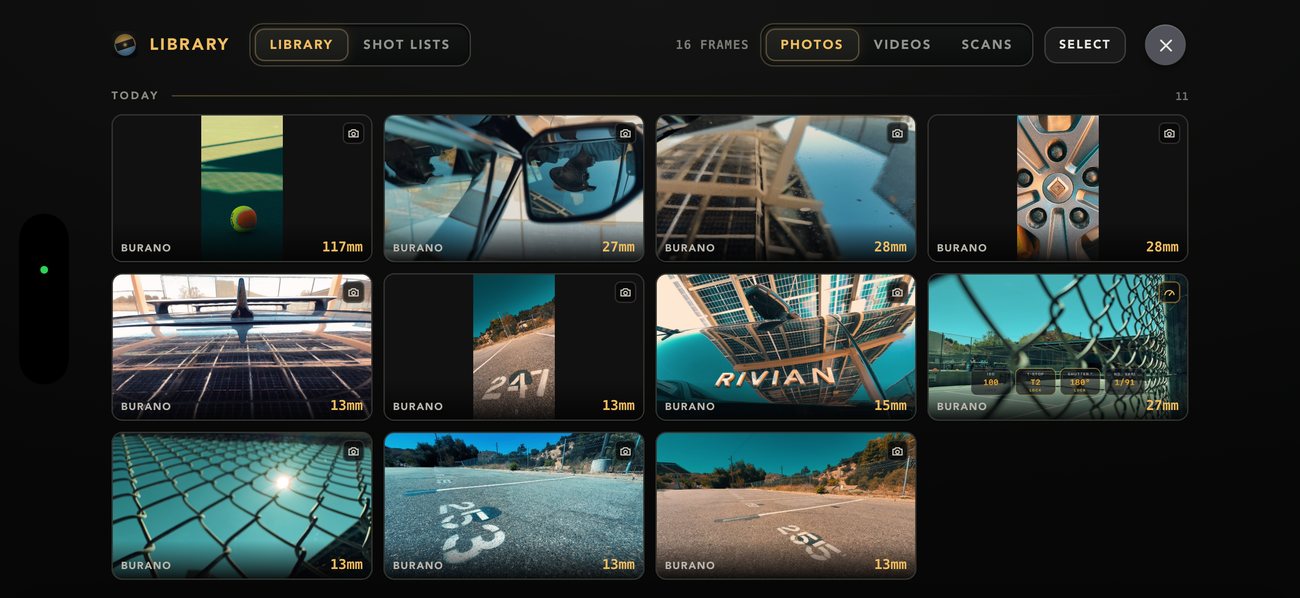
Every frame lands in the app’s own library, badged with the body and the focal length that took it. Drag the ones that matter into a named list, put them in order, and export it — a document the director, the DP and the production designer can all read on the same page.
The library
Every frame, with the lens that took it
Not the camera roll — the app’s own shelf, so a scout does not disappear into two thousand personal photos.
Photos, videos and scans on their own filters, grouped by the day you shot them
Body and focal length on every thumbnail — BURANO · 117mm — so you can find the 117 without opening anything
Meter frames keep their readings, and vertical takes sit tall in the grid
Select several at once to build a list, share them, or push them to a CamPlot project
Shot lists
The list is a document, not a screenshot
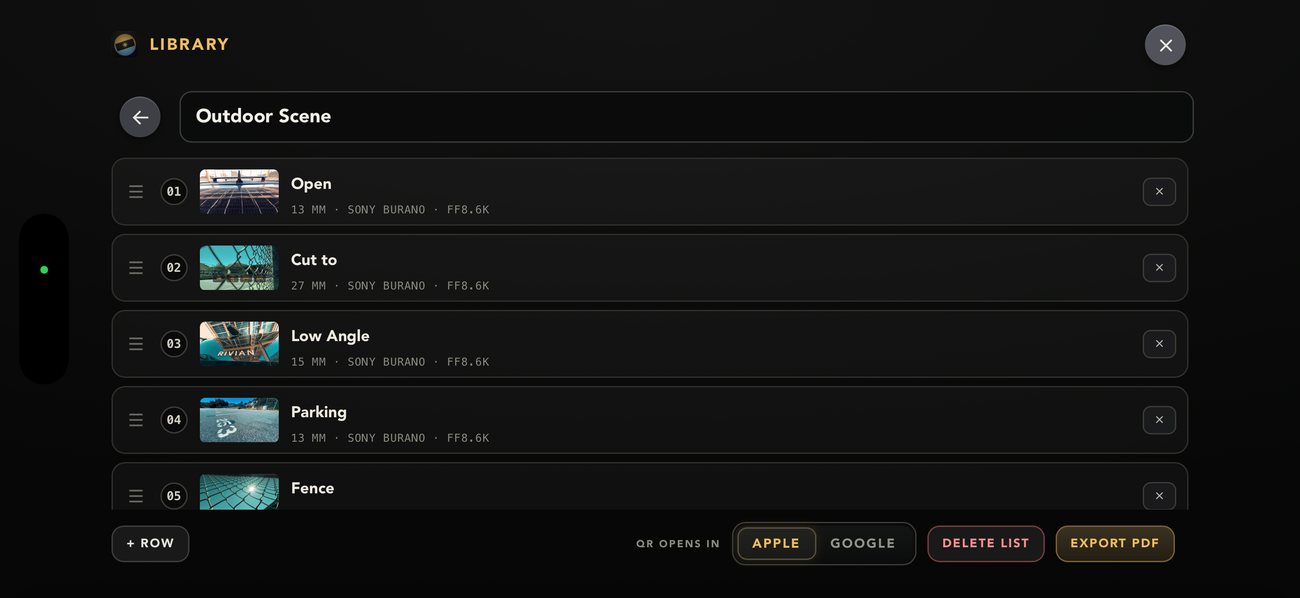
Name a list, drag frames into the order you want them, title each one. The export is a real page — and every row carries the whole state of the finder at the moment you pressed the button.
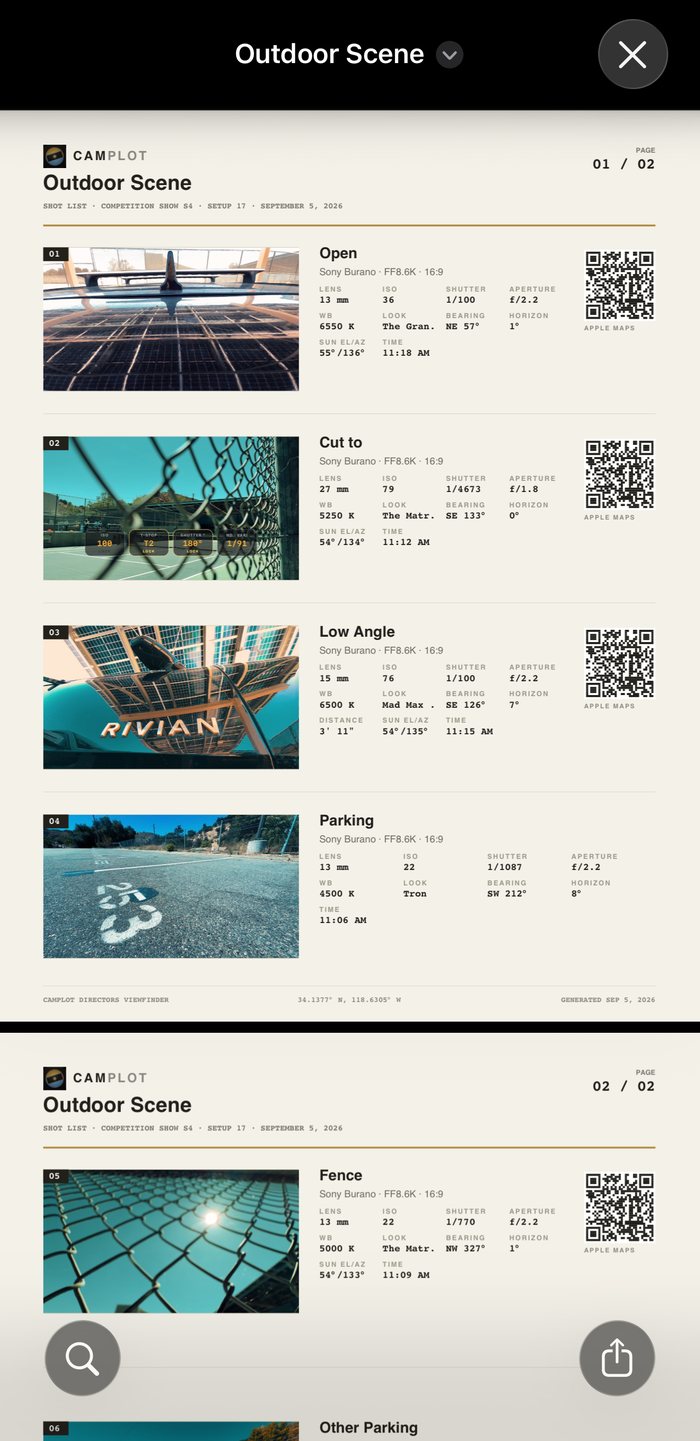
Body, sensor window, aspect, lens, ISO, shutter, aperture, white balance and the name of the look you were on
Bearing, horizon angle, sun elevation and azimuth, and the time — so “this only works at 11am” is on the page, not in your head
A QR code per frame that opens that exact spot in Apple or Google Maps, with the coordinates printed in the footer
LiDAR distance printed too, wherever the frame has one
Stamped with the CamPlot project and setup it belongs to, and exported as PDF
Six frames, ordered, titled
The export
What the rest of the crew actually gets
Two pages, six frames, every number the finder knew — and a QR code beside each one that puts whoever is holding it on the exact spot you stood.
Outdoor Scene · Competition Show S4, Setup 17 · 2 pages
However you hold it
Shoot it wide. Shoot it tall. Same app, no mode to find.
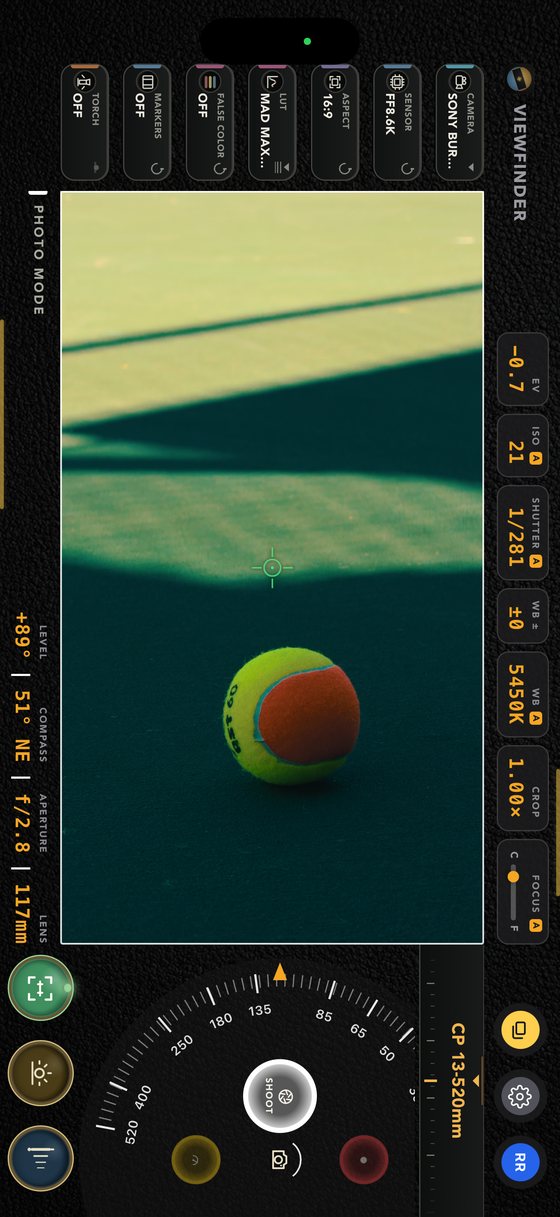
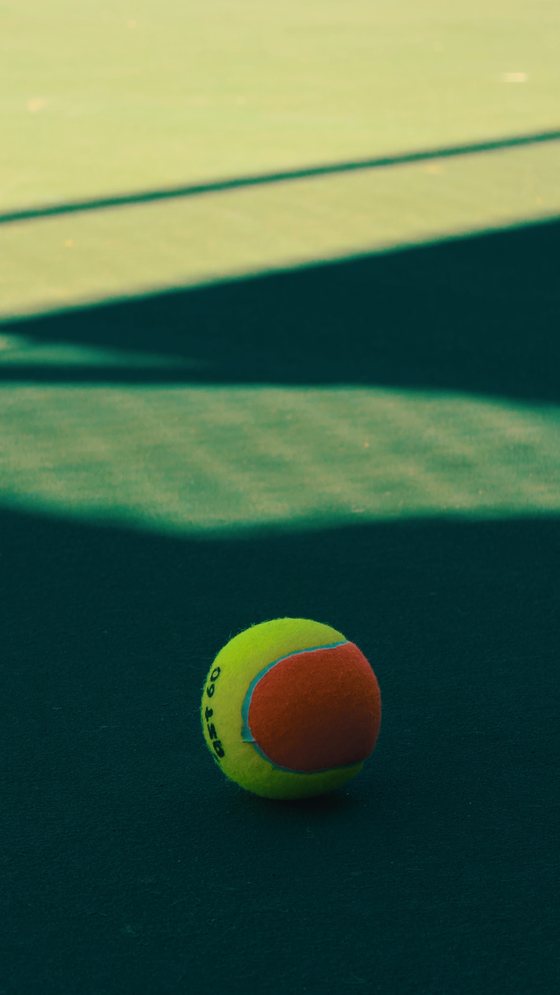
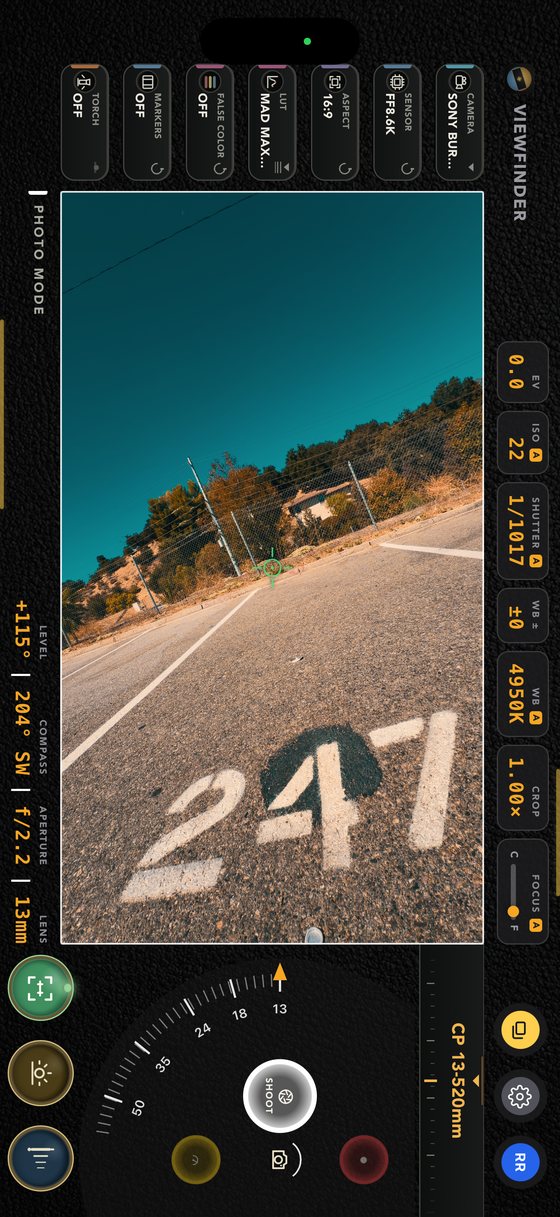
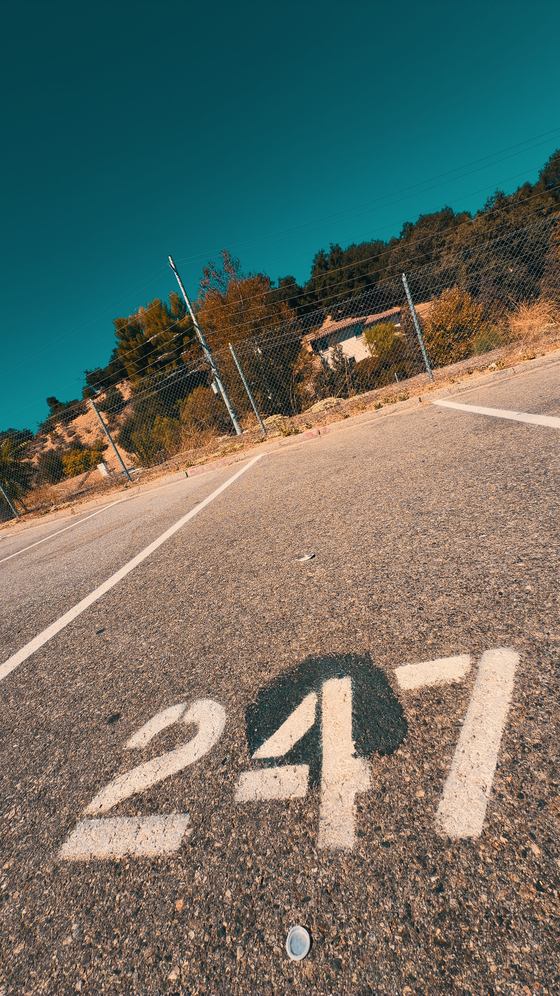
Turn the phone whichever way the shot wants and the picture comes out that way. Stand it upright and the frame stands up with you — every body, every lens, every look still on it — and what lands in Photos is a true vertical file, graded, not a wide frame you have to crop down afterwards and hope. If you cut for phones, the whole finder works for you at 9:16.
Held uprightWhat lands in Photos
Sony Burano · 117mm
1893×3365
Held uprightWhat lands in Photos
Sony Burano · 13mm
2160×3840
Photo and video both · takes come out upright, never on their side · or shoot flat with the 9:16 marker drawn inside the wide frame, so you can see the cutdown while you compose
On the rail, in the frame
Everything else it does
The widget rail changes with the mode, so each one only ever shows you the instruments that mode actually has.
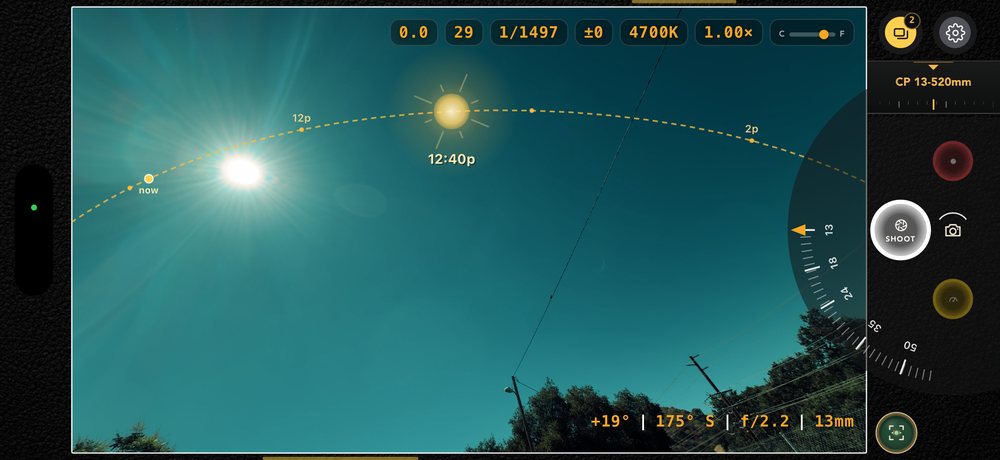
Sun & moon path · chrome hidden
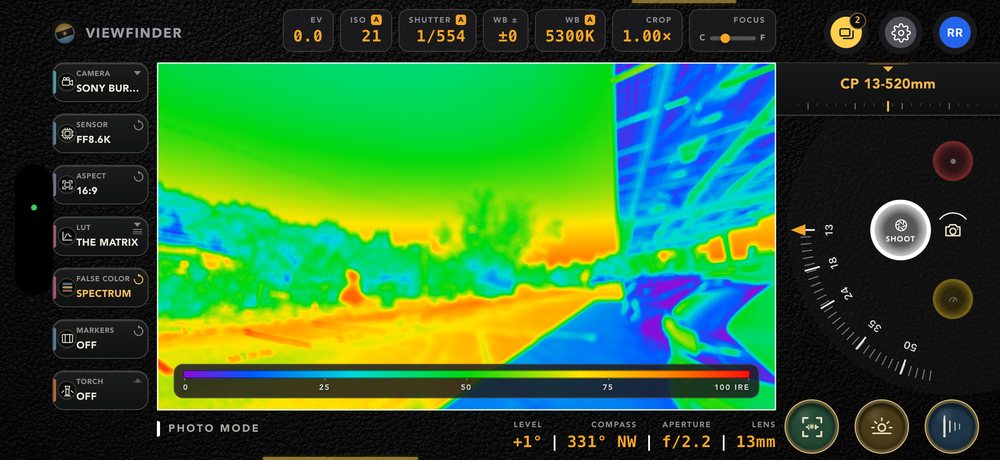
False colour · 0–100 IRE
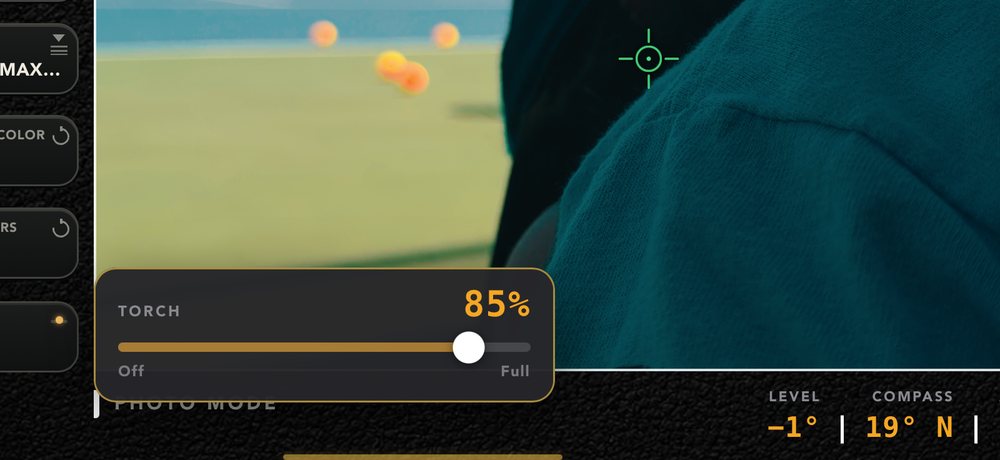
Torch · 85%, continuous
Manual focus · close to far
True 3D LUTs
A library of 230+ looks, CamPlot’s own Pop, Stylistic and Cinematic, and as many of your own .cube files as the phone will hold — applied on the GPU, exactly as your DIT would. The library & export →
Five overlays, one plate
The Display reel: aspect markers from 1:1 to 2.67 and 9:16, the outside shaded 25% to black, a centre cross in three sizes, a grid — 6×6, thirds, or the thirds of one axis alone for a horizon — and false colour on ARRI’s published scale or a full spectrum ramp, with an IRE key along the bottom. Each menu holds its own setting, so any of them can be on at once.
Sun and moon over the frame
Today’s arcs or any future date’s, from your location and the compass — both bodies at once out of the box. Each carries a pointer that slides along its own arc as you pan and tilt, telling you the hour it lands there. Computed on the phone, so it works with no bars.
LiDAR distance
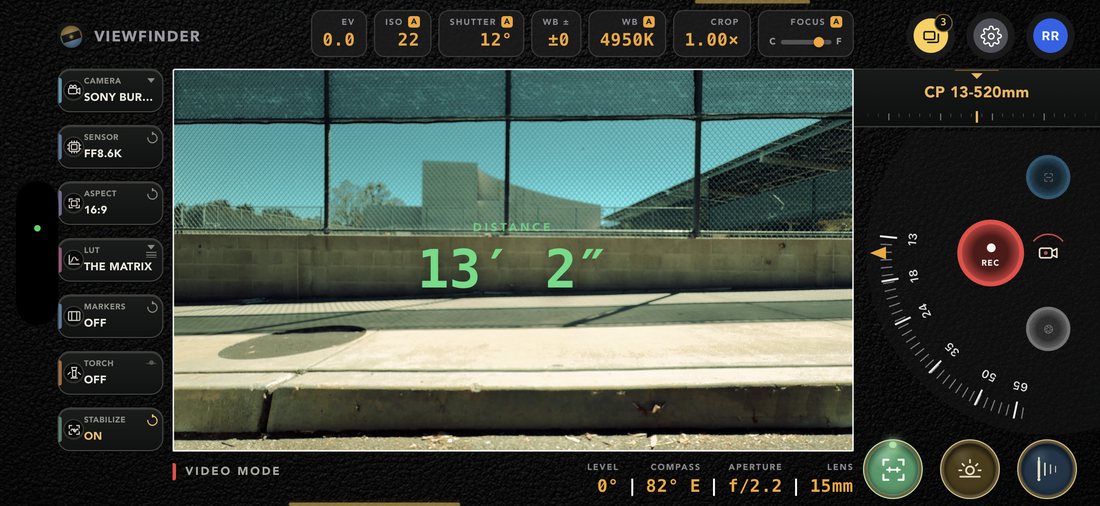
On Pro iPhones, aim and tap for feet and inches to your subject — with an optional surveyor’s cross showing exactly which point it reads.
Thirty-second exposures
The sensor tops out at one second, so CamPlot adds one-second frames in linear light on the GPU — and the glass shows the exposure building while it does. Stars trail, water goes to silk. Put the phone on something.
Hardware shutter
Volume up, volume down and the Camera Control button all fire the capture — and press again during the review window to save. Slim amber lines show you where they are.
Level & compass, instantly
Fed natively from CoreMotion, so the horizon angle and the heading are alive the moment the finder opens — no tapping the screen to wake them.
Torch, not a strobe
A continuous, brightness-adjustable light in both Photo and Video — the way you would actually use a light, not a flash you can never see through.
Captures that remember
Body, sensor mode, focal length and heading written into the file itself — iOS Photos reads them back as “Sony Burano · FF8.6K · 16:9 · 123 mm”. Signed in, a scout frame can go straight onto the right camera on your plot. Into a shot list →
Opens with no signal
The app boots from its own copy on the device. Bad hotel wifi, a stage with no bars, airplane mode — it opens instantly anyway.
Settings that stick
Default mode and camera, crop behaviour, LUT base, reverse wheel, recording resolution and codec, scanner defaults — set once, and that is how it opens.
Your kit, synced
Sign in and your show’s lens inventory, cameras and projects come with you — one account across the Viewfinder, the Calculators and all of CamPlot.
On the scout
Measure it, frame it, take it home.
A location survey used to be a tape measure, a phone camera and a notebook that made sense to nobody else. Here it is one pass: measure the throw, frame the shot through the body you are actually bringing, scan the room, and walk out with the plan and the frames already attached to the project.
LiDAR · 13′ 2″ to the wall, in Video mode
Questions
The Viewfinder, in short
What is the CamPlot Director’s Viewfinder?
An iPhone and iPad app that shows the frame a real cinema camera and lens would see: 40+ camera bodies with 185 real sensor windows, your own lens kit, 230+ true 3D LUTs and five modes — photo, video, exposure meter, LiDAR room scanner and monitor calibrator.
How much does it cost?
It comes with CamPlot Plus ($29.99 a year or $3.99 a month) or CamPlot Max ($49.99 a year, which adds CamPlot Creator), with a 7-day free trial. Without a subscription you can look around a preview with a generic full-frame body and a demo lens range.
Can I export a look as a LUT for my camera?
Yes. Pick the look, then your camera’s log — S-Log3, LogC4, C-Log3, V-Log, Apple Log and 13 more — and it composes the manufacturer’s own log-to-709 conversion under the look and hands you one .cube file for the camera or the DIT cart.
Does it record video?
Yes: HEVC or H.264 at 1080p or 4K, with the look and the framing baked into the file, Apple Log capture on capable iPhones, and the shutter set as a cinema angle.
How does it compare with Artemis or Cadrage?
Artemis has a larger, weekly-updated camera database and Cadrage is a one-time purchase. CamPlot adds video with the look baked in, an exposure meter, a LiDAR room scanner, a monitor calibrator, LUT export for camera log formats, and frames that land on your CamPlot camera plot. Side by side: CamPlot vs Artemis and CamPlot vs Cadrage.
Pricing
Free for 7 days. One account for everything.
Open the app and look around a preview — a generic full-frame body and a demo lens range. Your real cameras, your own glass and all five modes come with a subscription, and the first 7 days are free. The CamPlot Calculators are free with any account; the same subscription unlocks this viewfinder and all of CamPlot.
Preview
$0 to look
See it before you decide
The full viewfinder interface
Generic full-frame body
Demo lens range
Every mode visible, so you know what you’re getting
Open it and look
CamPlot Plus
$29.99/yr
or $3.99/month · 7-day free trial
Every camera body and sensor window
All five modes unlocked
Your own lens kits, the whole LUT library and LUT export
Sun and moon path, LiDAR, captures and scans
Markup and PDF export on plots shared with you
The whole field kit
CamPlot Max
$49.99/yr
or $4.99/month · 7-day free trial
Everything in CamPlot Plus
Create and share overhead camera plots
Lens-accurate FOV, movement, jib and dolly
Live crew sharing and camera reports
Scans save into your projects’ groundplan libraries
The full CamPlot
CamPlot Director’s Viewfinder
Every camera. Every lens. Five modes. One iPhone.
Free for 7 days. Built by a working director, used on network productions.